How to Make a Practice Quiz From a Photo on Your Phone
Snap a photo of your notes or textbook page and turn it into a practice quiz in minutes. Learn the steps, tips for better questions, and how Study Shot helps.
You have a textbook page, a worksheet or a whiteboard you snapped after class, and you want to be tested on it, not just reread it. Here is how to make a practice quiz from a photo on your phone, from the first tap to the results screen, plus how to take the photo and use the quiz so it actually helps you remember.
Why a photo is the fastest way to start a practice quiz
Writing your own questions takes longer than studying the page itself. Most people skip it and reread instead, which feels productive but does not test whether you can recall anything.
A photo skips the typing. You point your phone at the page, and Study Shot writes multiple-choice questions about what is on it, checks your answers and explains each one. It runs in your phone's web browser, so there is nothing to install. You can use the same account on a computer later.
What you need before you start
- A phone with a camera and a web browser.
- A Study Shot account. Every screen needs one, and sign-up asks for your name, email and a password. It is free to start.
- One page you want to study. A single page works better than a stack.
- Decent light and a flat surface.
You can also pick a photo you already took, such as a picture of the whiteboard from this morning. Photos can be JPEG, PNG, WebP or GIF, up to 5 MB. Study Shot shrinks large photos before upload, so you do not need to resize anything yourself.
Step-by-step: how to make a practice quiz from a photo on your phone
- Open the site and log in. Go to studyshot.vlvd.net in your phone's browser. Choose Create account the first time, or Log in if you already have one.
- Start a new quiz. From your library, choose Make a new quiz, then Take photo or Choose photo.
- Frame the page. The app's own tip is to hold the page flat and fill the frame. Textbooks, notes, diagrams and whiteboards all work.
- Pick the number of questions. Your options are 5, 10, 15 or 20. The default is 10.
- Pick a level. Tiered is the default. Basic, Intermediate and Advanced are the other three.
- Pick a language. The questions, answers and explanations can be in one of 50 languages. The app's own screens stay in English.
- Tap Create questions. You will see “Reading your page...” and then a message that it is writing your questions. This can take up to a minute.
- Answer one question at a time. Pick an option and press Check answer. You see Correct! or Not quite., the right answer, and a short explanation. Press Continue, and on the last question, Finish quiz.
If you get stuck on any step, the guide to making your first quiz walks through it.
How to take a photo that gives you better quiz questions
The questions can only be as good as what the AI can read. Most weak quizzes trace back to a weak photo. For a deeper walkthrough, see the guide on taking a good photo of a page. The short version:
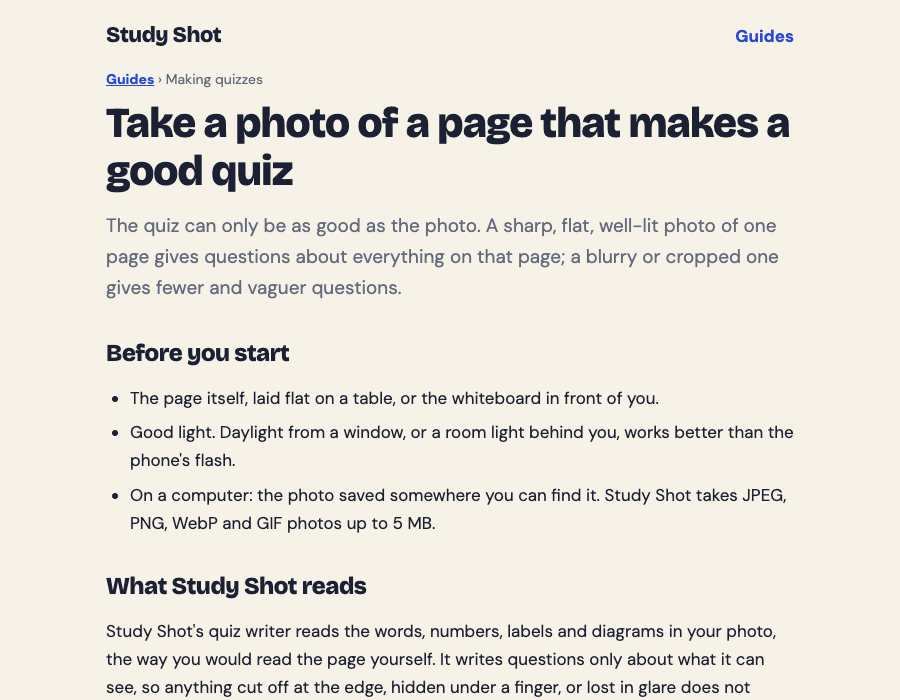
- Fill the frame. Get close enough that the text is large, but keep all the edges of the content you want covered.
- Hold the page flat. Curved book pages near the spine blur and skew the text. Hold the book open with your free hand at the edge, not over the text.
- Avoid glare and shadows. Move so your phone and your hand do not cast a shadow over the words. Tilt slightly if a lamp is reflecting off glossy paper.
- Keep it to one topic. A page about one idea gives you questions about that idea. A page with three unrelated sections gives you a thin spread.
- Keep your fingers off the text. Anything hidden under a finger or lost in glare cannot make it into the quiz.
If the photo cannot be used, Study Shot tells you: “We couldn’t write questions for this photo. Try a different page.” Take a clearer shot of a different page and try again.
Choosing question count and level (Study Shot is multiple choice only)
Some study tools offer flashcards or short-answer prompts. Study Shot does not. Every question is multiple choice with four options, A to D, and one right answer. That is a limit, but it also keeps the quiz quick to run on a phone, on a bus or between classes.
What you control instead is how many questions you get and how hard they are:
- Basic: key terms, facts and definitions. Good for a first pass over new material.
- Intermediate: explain, compare and connect ideas. Good once you know the vocabulary.
- Advanced: apply and predict in new situations. Good in the days before an exam.
- Tiered: a ladder that starts basic and climbs to advanced, with the questions split as evenly as possible across the three levels.
A worked example: you photograph a biology page on photosynthesis. For a first read, choose 10 questions at Tiered. You will see a few definition questions, then some that ask you to connect ideas, then a few that ask you to apply them. Later in the week, take a fresh quiz on the same page at Advanced to push harder. The guide to choosing level and number of questions covers this in more detail.
One practical note on cost: writing a quiz uses credits from a monthly allowance. A 20-question quiz uses about four times what a 5-question quiz does. Study Shot checks you have enough credits before it writes, so a quiz never stops halfway. Taking a quiz and retaking it use no credits.
How to use your quiz to study smarter (retrieval practice and spaced review)
Making the quiz is the easy part. How you use it matters more.
Answer before you look
Try to recall the answer in your head before you read the four options. A practice quiz asks you to recall, so give your own answer a try first. Then press Check answer and compare.
Read every explanation, including the ones you got right
After you press Check answer, you get a one to three sentence explanation. Read it even when you were correct. If your reasoning was wrong but you landed on the right letter, the explanation shows you. The questions are written by an AI model and can contain mistakes, so treat the explanation as a way to check your understanding against your page. If something looks wrong, use Report a problem with this question under the question and pick one of four reasons. See the guide on answering and learning from explanations.
Use the results screen to decide what to do next
When you finish, you see a percentage and a grade: Mastered at 90% and up, Good at 70% and up, Getting there at 50% and up, and Needs another try below 50%. You also see a score for each level, and a Look at these again list showing each missed question with Your answer and the Right answer. Start your review there, not with the whole page.
Space out your retakes
Your quiz is saved in your library with its page photo and your best score. Try not to retake it ten minutes later, when the answers are still fresh in your head. Come back after a day, then again a few days later, and see whether your score holds. Because retakes use no credits, you can do this as often as you like. The library keeps your best score, so you can see whether it holds. The guide on results, library and retakes explains the screens.
Common mistakes to avoid
- Photographing too much. Three pages crammed into one shot make the text tiny. Take one page per quiz.
- Choosing Advanced too early. If the material is new, start with Tiered or Basic.
- Always asking for 20 questions. A shorter quiz you finish beats a long one you abandon, and it uses fewer credits. Try 10 first.
- Retaking right away. You will be remembering the last answers, not the material.
- Trusting every question blindly. Check doubtful ones against your page and report them if they are wrong.
Frequently asked questions
Do I need to install an app to make a quiz from a photo?
No. Study Shot runs in your phone’s web browser at studyshot.vlvd.net, and the same account works on a computer. You do need to create an account, because every screen requires one.
Can I use a photo I already took?
Yes. After you choose Make a new quiz, pick Choose photo instead of Take photo. JPEG, PNG, WebP and GIF files up to 5 MB are accepted.
Does it make flashcards or short-answer questions?
No. Study Shot writes multiple-choice questions only, with four options and one right answer. You can pick 5, 10, 15 or 20 questions and a level from Basic to Advanced.
Is my photo stored on your server?
The photo is sent to the AI model to write the questions and is not stored on Study Shot’s server. It is kept on your own device so the quiz can show it again.
Does retaking a quiz cost credits?
No. Only writing a new quiz uses credits. Taking a quiz, retaking it and taking one a friend shared with you are all free of credits.
Get started
Pick one page you need to learn this week, take a clear photo of it, and make a 10-question Tiered quiz. Read the explanations, check the Look at these again list, and retake the quiz in a day or two. If you want to send a quiz to a study group, the guide to sharing a quiz shows how.
Try Study Shot: it is free to start. Photograph the page you are studying tonight and get practice questions on it, from basic to advanced, with every answer explained.