App That Makes Practice Questions From a Textbook Page
An app that makes practice questions from a textbook page turns your photo into a quiz. See how Study Shot does it, what to check, and a routine for each page.
If you want an app that makes practice questions from a textbook page, you want one thing: point a camera at the page and get questions back that test what is on it. Study Shot does this in the web browser, on a phone or a computer. This post explains how it works, what to check in any tool like it, and a routine you can repeat for every page you study.
What an app that makes practice questions from a textbook page does
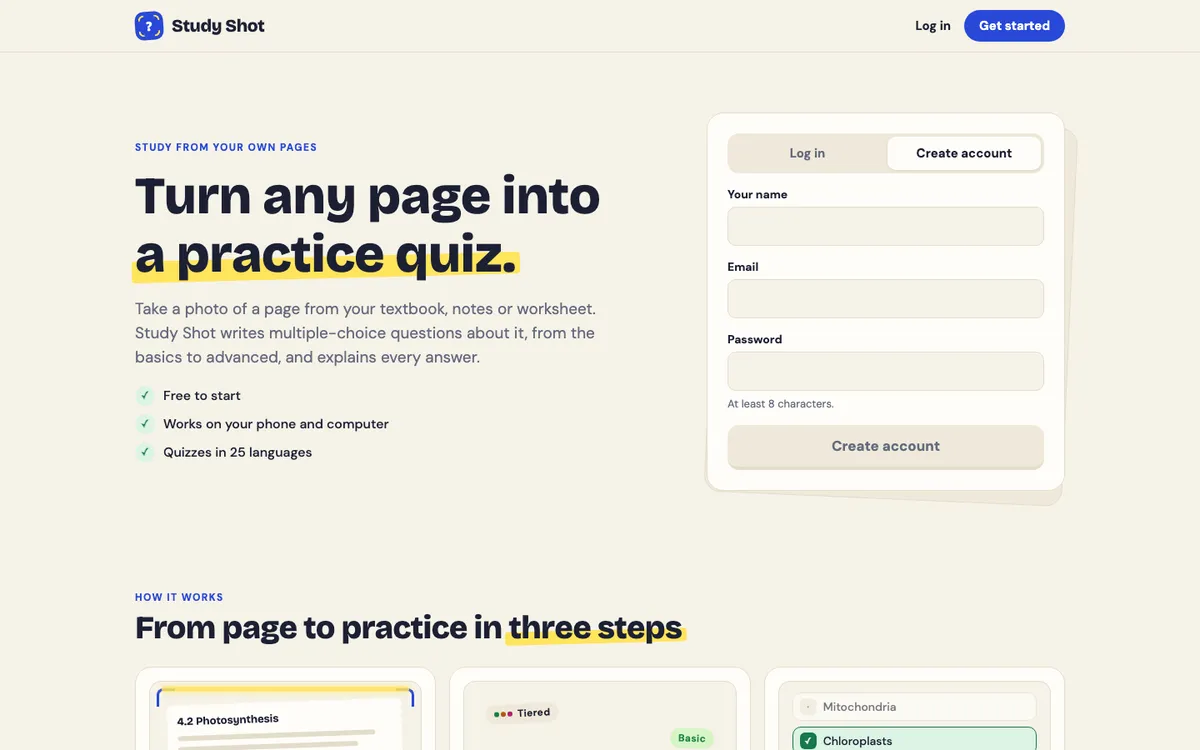
Study Shot takes a photo of a page and turns it into a multiple-choice quiz. The page can come from a textbook, your own notes, a worksheet or a whiteboard. An AI model reads the photo and writes the questions. You answer them one at a time. The app checks each answer and explains it.
That is a different job from a summary tool. A summary gives you the page in fewer words, and you read it. A quiz asks you to answer questions about the page, so you see what you can answer and what you cannot.
Each question has four choices, A to D, and one right answer. Study Shot uses multiple choice only. There is no short-answer or essay mode, so if your exam is mostly written answers, treat the quiz as a check on facts and reasoning, not as a full rehearsal.
How it works: from page photo to quiz in about a minute
The steps are short. You need a free account first, because every screen of the app needs one.
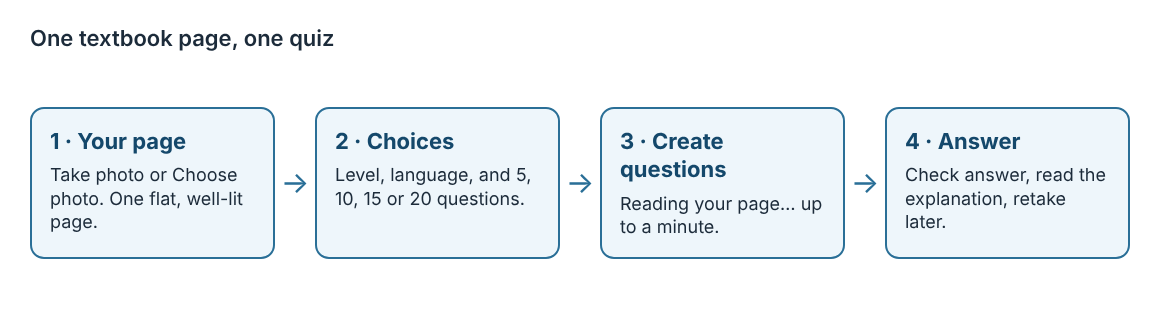
- Make a new quiz. In your library, press Make a new quiz.
- Your page. Choose Take photo, or Choose photo to use one you already have.
- Level. Leave Tiered on, or pick Basic, Intermediate or Advanced. More on this below.
- Language. The questions, answers and explanations are written in the language you pick, from 50. The app's own screens stay in English.
- How many questions. Pick 5, 10, 15 or 20. The default is 10.
- Create questions. While it works you see "Reading your page…". This can take up to a minute.
Photos can be JPEG, PNG, WebP or GIF, up to 5 MB. Study Shot shrinks large photos before sending them, so small print stays readable. A PDF will not work. Take a screenshot of the page instead.
The four levels
The level controls what kind of question you get.
- Basic: key terms, facts and definitions.
- Intermediate: explain, compare and connect ideas.
- Advanced: apply and predict in new situations.
- Tiered (the default): a ladder that starts with basic and climbs to advanced. It splits the questions as evenly as possible across the three levels.
The guide on choosing a level and number of questions goes into more detail.
What to check in a textbook question generator
Whatever tool you use, check these things before you give it your study time.
- It works from your page. The questions should come from the photo you took. Study Shot writes questions only about what it can see in the photo, so what is cut off, hidden under a finger or lost in glare does not make it into the quiz.
- It explains answers. A score alone tells you little. A short explanation after each answer lets you check the reasoning against your page.
- It has a range of difficulty. A page of definitions needs different questions from a page of worked problems.
- It saves your work. You want to retake a quiz later and see whether your score went up.
- It lets you flag bad questions. No AI is perfect, so a reporting option is a good sign.
On the last point, be honest with yourself about accuracy. Study Shot's questions are written by an AI model and can contain mistakes. If a question looks wrong, check it against your page. Then use Report a problem with this question under it and pick one of four reasons. The post on how accurate AI-written practice questions are covers how to read a doubtful question.
What the results screen tells you about the page
When you finish, the results show a percentage and a grade, plus a right-out-of-total score for each level in the quiz. If the advanced score is low and the basic score is high, you know the facts but not yet how to use them. That tells you what to look at next on the page.
Below that, a section called Look at these again lists the questions you missed. For each one you see Your answer, the Right answer and the explanation. The grades are:
- Mastered: 90% and up
- Good: 70% and up
- Getting there: 50% and up
- Needs another try: below 50%
How to use it: a routine for each textbook page
Here is a routine you can repeat. It is a suggestion, not a tested method.
Step 1: Photograph the page
Put the page flat on a table. If you hold a book open, keep your free hand at the edge, not over the text. Hold the phone straight above the page so it fills the frame, and check there is no shadow or shine across the text. The guide on taking a good photo of a page has the full list. One page per quiz works best: a photo of two pages side by side makes the print smaller and splits the questions between them.
Step 2: Start with Tiered and 10 questions
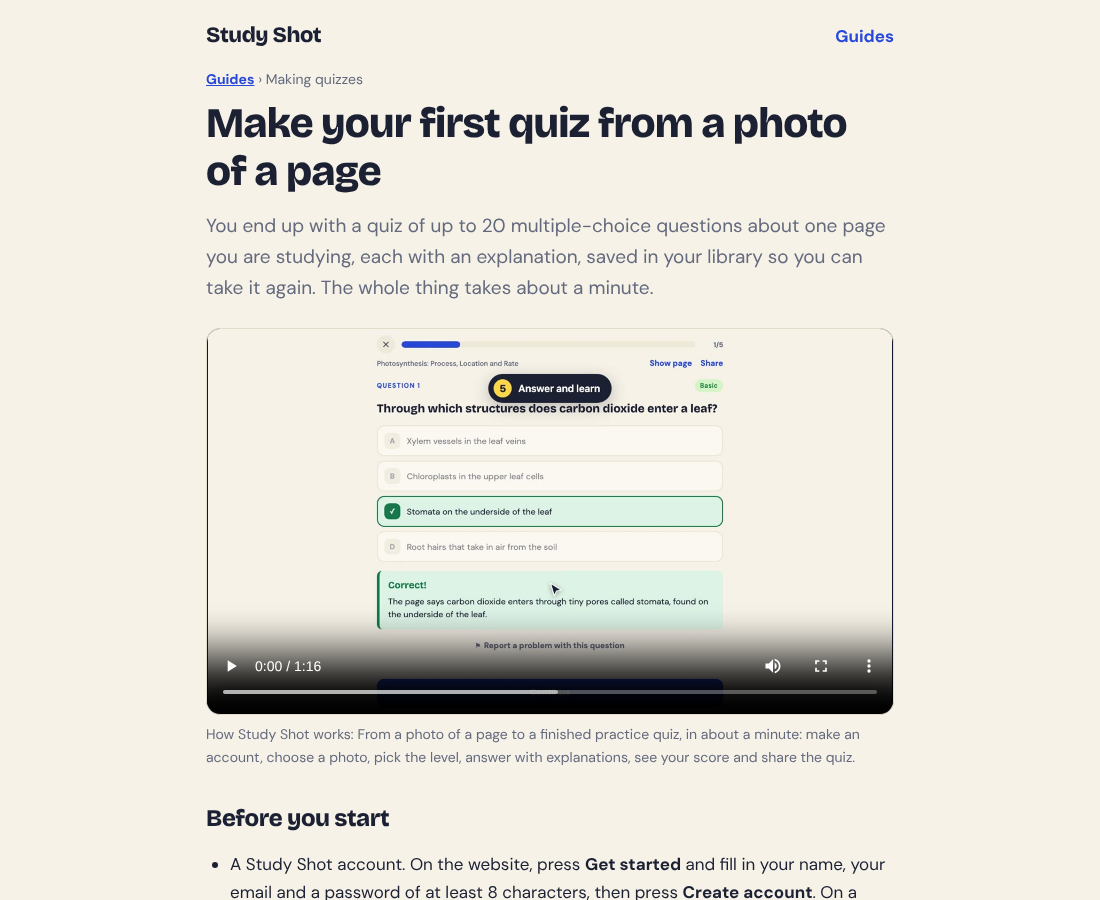
Say the page is a biology page on photosynthesis. As an example, an early Tiered question might ask where in a plant cell photosynthesis takes place, with the chloroplasts as the right choice. That is the sample question on the home page, not a guarantee of what your page will give you. Later questions climb toward the intermediate and advanced levels. Your first quiz can also be just 5 questions, which is quick to make and shows how Study Shot handles your kind of page.
Step 3: Answer, check, read the explanation
Pick an option and press Check answer. You see Correct! or Not quite., the correct answer, and an explanation of one to three sentences. Read it even when you got it right. Press Continue for the next question. If you need to look at the page during the quiz, Show page brings up your photo.
Step 4: Retake a day or two later
Quizzes are saved in your library with a thumbnail of the page and your best score. The results guide suggests retaking a quiz a day or two later, not only straight away, because getting it right after a break is a better sign that you have learned it. Taking and retaking a quiz use no credits. The post on how to retake a quiz until you master a page lays out a pattern.
Step 5: Move to the next page
Do the same for the next page. Working page by page keeps each quiz focused, and a chapter becomes a set of small quizzes. See how to study a whole chapter one page at a time.
Who benefits most: students, parents and self-learners
Students get a fast way to test themselves without waiting for a teacher or a study group. Before an exam, going straight to Advanced gives you the harder questions.
Parents can photograph a page of homework and hand over a quiz instead of asking "do you know this?". You can also use Share this quiz to send a quiz by link. The person who opens it needs a Study Shot account and gets their own copy of the questions, without your photo. You can Stop sharing at any time.
Self-learners reading a book with no teacher have no one to check their understanding. A quiz on a chapter page gives them a check, and the explanations give them something to read when they miss.
Common mistakes and how to get better questions
- A blurry or cropped photo. If the questions cover only part of the page, part of it was cut off, out of focus or in shadow. Retake the photo with the whole page in the frame.
- Too many pages in one photo. One clear page gives questions about that page.
- Always choosing Basic. Definitions are the easiest to answer. If you score Mastered on Basic every time, try Intermediate or Advanced.
- Skipping the explanation. The score tells you how you did. The explanation tells you why.
- Ignoring a bad question. If a question mentions something that is not on the page, check your page, then report it with "It isn't on the page".
If you study in a second language, you can set the quiz to a different language from the page. See can I get a practice quiz in Spanish from an English page.
On privacy, the photo is sent to the AI model to write the questions and is not stored on Study Shot's server. It is kept on your own device so the quiz can show it again. The server stores your name, email, a hashed password, the quiz, and each attempt's answers and score.
On cost, writing a quiz uses credits from a monthly allowance, and a 20-question quiz uses about four times what a 5-question quiz does. Study Shot checks you have enough credits before it writes, so a quiz never stops half way. Credits start again on the 1st of each month and do not roll over. The credits and Study Shot Plus guide has the details.
Frequently asked questions
Can I use it on my phone?
Yes. Study Shot runs in the web browser on a phone or a computer. It is a web app, so you open it at studyshot.vlvd.net rather than installing it.
How many questions can I get from one page?
You can choose 5, 10, 15 or 20 questions. The default is 10. Each question has four choices.
Are the questions always correct?
No. An AI model writes them, so some can contain mistakes. Use the explanation to check against your page, and use Report a problem with this question if something looks wrong.
Does retaking a quiz cost credits?
No. Taking a quiz, retaking it, and taking a quiz someone shared with you use no credits. Writing a new quiz does.
Can I upload a PDF?
No. Study Shot works from a photo of a page, in JPEG, PNG, WebP or GIF, up to 5 MB. To use a PDF page, take a screenshot of it.
Get started
Try Study Shot: it is free to start. Photograph the page you are studying tonight and get practice questions on it, from basic to advanced, with every answer explained. If you want a walkthrough first, the guide to making your first quiz covers each step.