How to Quiz Yourself From a Photo of a Whiteboard
Snap a photo of a whiteboard and turn it into a practice quiz. Learn how to capture it, generate questions, and study with active recall in minutes.
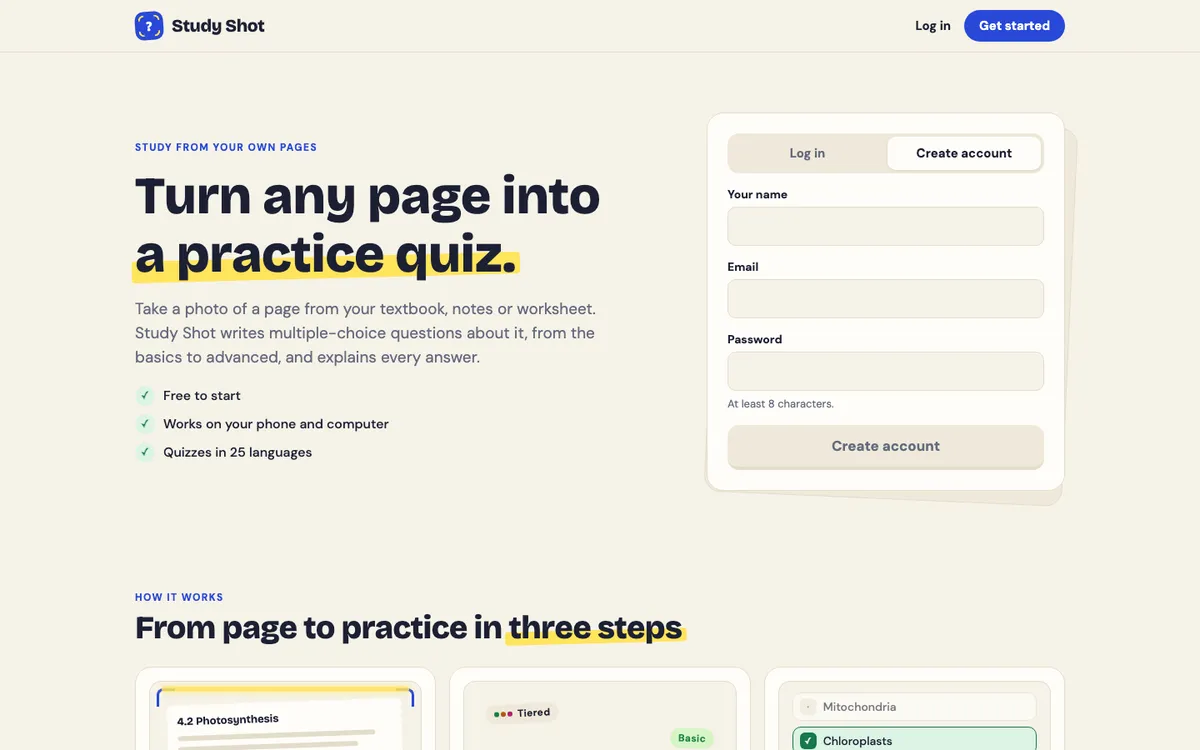
You finish a lecture or a study group, and the whiteboard is full. Diagrams, formulas, arrows, half-erased notes. Someone takes a photo, and then it sits in your camera roll and never gets opened again. If you want to know how to quiz yourself from a photo of a whiteboard, the answer is to turn that photo into questions you have to answer. Study Shot does this in your browser: you photograph the board, and it writes multiple-choice questions about what is on it.
This post covers how to take a photo that works, how to turn it into a quiz, what content suits the method, and how to do it by hand if you prefer.
Why a whiteboard photo makes a great quiz source
A whiteboard holds the most important points of a session in one place. Someone has already picked what mattered enough to write down, so you do not start from a blank page.
The problem is that a photo on its own asks nothing of you. A quiz does: you pick an answer, see whether it was right and read why. That gives you something to do with the board besides looking at it.
Boards also get erased. The photo is often the only record. Turning it into questions the same day means you can check yourself on it while you still remember the lesson.
How to take a whiteboard photo that is easy to read
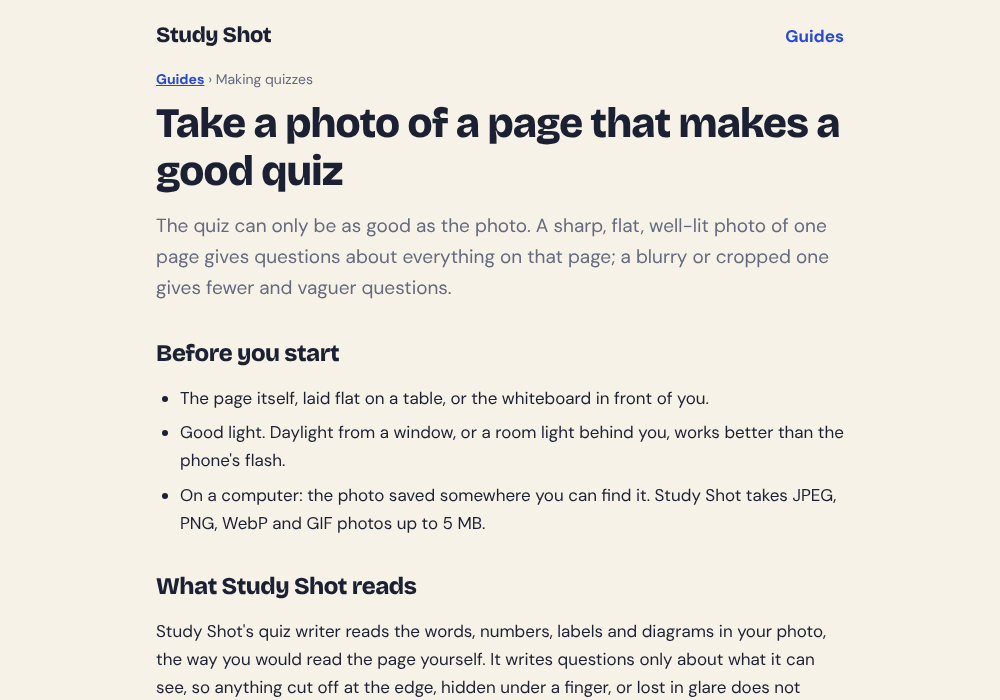
The questions are only as good as the photo. Study Shot asks you to hold the page flat and fill the frame, and whiteboards are on the list of things that work. A few habits help:
- Stand square to the board. The guide says to photograph a whiteboard straight on, without other people or the room taking up most of the frame.
- Fill the frame with the part you want. One page per quiz works best, so if the board has three topics, take three photos and make three quizzes.
- Watch for glare. Anything lost in glare does not make it into the quiz, so shift a step left or right until the shine leaves the writing.
- Keep your hand steady. A blurry photo gives fewer and vaguer questions. Look at the photo and zoom in on the smallest writing: if you can read it, Study Shot can.
The file can be a JPEG, PNG, WebP or GIF, and it must be 5 MB or smaller. If a file is larger than that, choose a different photo. Photos are also shrunk to 2,000 pixels on the long edge before upload, so keep the writing large and clear in the frame. The guide on taking a good photo of a page goes into more detail.
How to quiz yourself from a photo of a whiteboard, step by step
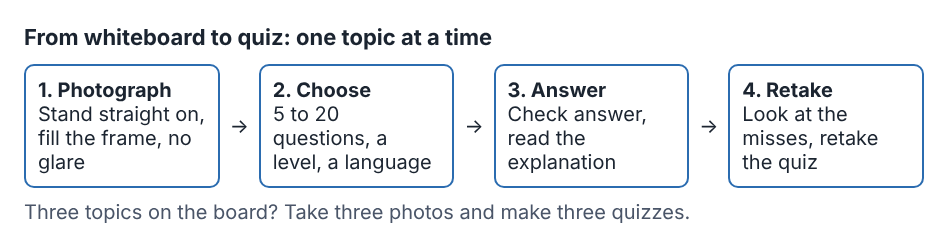
You need an account first, since every screen in Study Shot requires one. It is free to start. Then:
- Make a new quiz. Choose Take photo to shoot the board right there, or Choose photo to pick one already on your phone or computer.
- Pick the number of questions. The options are 5, 10, 15 or 20. The default is 10. A busy board with many ideas suits 15 or 20. A single diagram is fine with 5.
- Pick a level. Tiered is the default. It is a ladder that starts with basic questions and climbs to advanced. You can also choose Basic, Intermediate or Advanced.
- Pick the quiz language. Questions, answers and explanations can come in 50 languages. The app's own screens stay in English.
- Press Create questions. It shows a message while it reads the page and writes your questions. This can take up to a minute.
Writing a quiz uses credits from your monthly allowance. Study Shot checks you have enough before it starts, so a quiz never stops half way. A 20-question quiz uses about four times what a 5-question quiz does, so choose the count that fits what is on the board.
Then you answer one question at a time. Pick an option, press Check answer, and you see whether you were right, the correct answer, and a short explanation. If you want to look back at the board mid-quiz, Show page brings up your photo. For a full walkthrough, see the guide on making your first quiz.
What kinds of whiteboard content work best
Study Shot writes questions only about what it can see on the board, so clear writing and labels give it the most to work with.
- Definitions and key terms. The Basic level asks about key terms, facts and definitions, so a board of vocabulary suits it.
- Labelled diagrams. The guide says it reads the words, numbers, labels and diagrams in your photo, so a diagram with clear labels can work.
- Comparisons. Two columns side by side give the Intermediate level, which asks you to explain, compare and connect ideas, something to work with.
The guide says it reads printed text best, but neat handwriting and labelled diagrams work too. A crowded board, faint or messy writing, or a part cut off at the edge gives it less to work with. If the model cannot write questions for a photo, you will see: "We couldn't write questions for this photo. Try a different page." Retake the photo closer, or crop to one section, and try again.
Questions are written by an AI model and can contain mistakes. The explanation after each answer helps you check the reasoning against your own notes. If a question looks wrong, use Report a problem with this question under it and choose one of four reasons.
How to quiz yourself the manual way (and its limits)
You can do this without any tool. Open the photo and work through it like this:
- Cover the board with a sheet of paper and uncover one line at a time.
- Before each reveal, write down what you think the next idea is.
- Turn each heading or term into a question, such as "What are the three steps of this method?"
- Answer on paper without looking, then compare.
This works, and it costs nothing. The limit is time: writing 15 good questions takes a while, and nobody tells you why a wrong answer is wrong. A generated quiz gives you a set of questions at the level you choose and an explanation for each answer, so the manual method can sit beside it.
Make your self-quiz harder with levels and retakes
The level you choose changes what the questions ask:
- Basic: key terms, facts and definitions.
- Intermediate: explain, compare and connect ideas.
- Advanced: apply and predict in new situations.
One plan for a board you just saw: start with Tiered so you climb from basics to advanced in one sitting. Tiered splits the questions as evenly as possible across the three levels. The results screen then shows your score for each level, so you can see where you slip. For more on the levels, read why easy to hard questions help you learn and why levels matter.
At the end you get a percentage and a grade: Mastered at 90% and up, Good at 70% and up, Getting there at 50% and up, and Needs another try below that. The Look at these again list shows each missed question with your answer and the right one.
Here is an illustrative example, with made-up numbers to show how to read your results. Say you photograph a chemistry board on balancing equations and make a Tiered quiz of 15 questions. Suppose the results screen shows 5 of 5 on Basic, 3 of 5 on Intermediate and 1 of 5 on Advanced. A pattern like that would tell you the vocabulary is fine, but applying the method to new equations is not. You would read the missed questions, then press Retake quiz. Retakes use no credits, and the quiz stays saved in your library with your best score, ready to retake any time. More on that in how to retake a quiz until you master a page.
If a classmate was at the same session, you can use Share this quiz to send a link. They need a Study Shot account and get their own copy of the questions, without your photo. Taking a shared quiz uses no credits. See sharing a practice quiz with classmates.
Frequently asked questions
Can I quiz myself from a whiteboard photo on my phone?
Yes. Study Shot runs in the web browser on a phone or a computer. You can take the photo right in the app or choose one you already have.
Does Study Shot store my whiteboard photo?
The photo is sent to the AI model to write the questions and is not stored on Study Shot's server. It is kept on your own device so the quiz can show it again.
How many questions can I get from one photo?
You can choose 5, 10, 15 or 20 questions, and the default is 10. Each question has four choices with one right answer.
Do retakes cost credits?
No. Taking a quiz, retaking it and taking a shared quiz use no credits. Only writing a new quiz uses credits from your monthly allowance.
Will the questions always be correct?
No. An AI model writes them, so they can contain mistakes. Read the explanation to check it against your notes, and report a question if something looks wrong.
Get started
Next time the board fills up, take the photo before it is erased. Then turn it into questions the same day, while you still remember the lesson. Try Study Shot: it is free to start. If you want to see how photo quizzes work in general first, read how to make a practice quiz from a photo on your phone.