How to Turn a Page of Lecture Slides Into a Quiz
Photograph or screenshot one slide page, pick a level and a length, and Study Shot writes questions on it. Here is the routine, what to do with image-only slides, and how to retake.
A slide is a few headlines left behind by a talk. If you want to know how to turn a page of lecture slides into a quiz, the idea is simple: pick one page, turn its key points into questions, answer them without looking, then check what you missed. This post shows a manual method, then a faster way using a photo, and how to handle slides that are mostly pictures.
Why a quiz beats rereading your lecture slides
A slide that says "Mitosis has four phases" is easy to nod at. A question that asks you to name the phases in order shows you right away whether you can.
Slides also leave gaps. In the lecture the speaker may have given the reasoning out loud, and the slide kept only the headline. A quiz asks you to supply the missing part. When you cannot, you have found something to study. This post gives a routine to try, not a proven method.
If you want a tool that does the writing for you, Study Shot turns a photo of a page into a multiple-choice practice quiz and explains each answer.
What makes a slide page good quiz material
Not every slide page is equal. Before you spend time on one, check for these:
- Full sentences or clear labels. A definition, a list of steps, or a labeled diagram gives a question something to hold on to.
- One topic per page. A page about a single idea gives you a focused quiz. A page that jumps between three topics gives you a muddy one.
- Enough content. A title slide or a single quote has too little. A summary or recap slide works better.
- Readable text. Study Shot writes questions only about what it can see, so text that is cut off, blurry or lost in glare will not make it into the quiz.
A good rule: if you could write three different questions from the page, it is good material.
How to turn a page of lecture slides into a quiz step by step
Whether you work by hand or with a tool, the steps are the same.
- Pick one page. Do not start with the whole deck. Choose the page you feel least sure about.
- Decide how hard they should be. Start with definitions and facts, then move to explaining and applying.
- Decide how many questions. Five to ten is a sensible size for one page.
- Answer without the slide in front of you. Looking back at it while answering defeats the purpose.
- Check and read the reasoning. A right answer with a shaky reason is still a weak spot.
- Redo the page later. Come back after a day or two and try again.
If you have a whole chapter of slides, our post on studying a whole chapter one page at a time shows how to repeat this without getting overwhelmed.
Turn slides into a quiz by hand: a quick method
You do not need any software to start. Here is a method for one page at a time.
Read, cover, write
Read the slide once. Cover it. On a sheet of paper, write down everything you remember. Uncover it and mark what you missed. Those misses are your first questions.
Turn each bullet into a question
Take a bullet like "Enzymes lower the activation energy of a reaction." Turn it into: "What do enzymes do to the activation energy of a reaction?" Then write three wrong answers that sound believable. Good wrong answers are the hard part, and they take time.
Climb the difficulty
Write your first questions as recall: terms, facts, definitions. Then add some that ask you to explain or compare. Finish with one or two that ask you to predict what happens in a new situation, such as "What would happen if the enzyme were heated far past its working temperature?"
This works, but writing good distractors and checking your own answers is slow. That is where a tool helps.
Let Study Shot build the quiz from a photo or screenshot
Study Shot runs in the web browser on a phone or a computer. You give it a picture of the page, and an AI model writes the questions. Here is the flow.
- Create an account and log in. Every screen needs one.
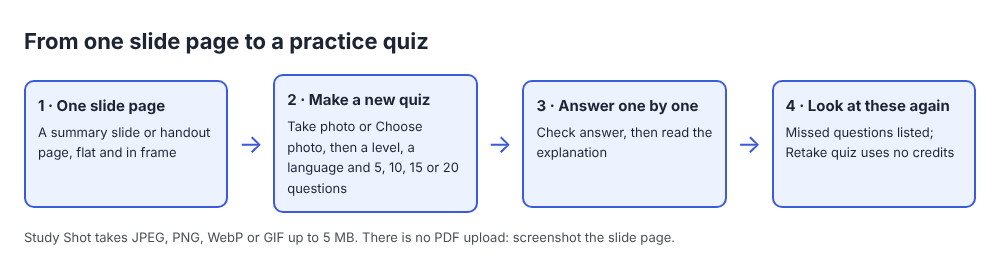
- Choose Make a new quiz, then Take photo or Choose photo. Use Take photo for a printed handout or a slide on a screen in front of you. Use Choose photo for a screenshot or an image you already saved.
- Pick a level: Tiered (a ladder from basic up to advanced), Basic (key terms, facts and definitions), Intermediate (explain, compare and connect ideas), or Advanced (apply and predict in new situations).
- Pick the language for the quiz.
- Pick 5, 10, 15 or 20 questions. The default is 10.
- Press Create questions. It can take up to a minute.
Photos can be JPEG, PNG, WebP or GIF up to 5 MB, and they are shrunk before upload. There is no PDF upload, so for a PDF deck, screenshot the page you want and use that. The guide to taking a good photo of a page covers framing and lighting. It lists a slide photographed straight on, without other people or the room taking up most of the frame, as a page that works well. Hold the camera flat and fill the frame with the page.
For example, say you photograph a handout page about the water cycle and choose Tiered with 10 questions. The questions are split as evenly as possible across basic, intermediate and advanced, in that order. The early ones might ask what evaporation is, and the last ones might ask you to predict what happens in a new situation. The exact questions depend on what is on your page.
You answer one question at a time. Press Check answer and you see Correct! or Not quite., the right answer, and a short explanation. The AI model can make mistakes, so use the explanation to check your own understanding. If a question looks wrong, use Report a problem with this question under it. If you want to look at your slide again mid-quiz, Show page brings up your photo.
If you study in another language, the post on getting a practice quiz in Spanish from an English page explains how that works. The app's own screens stay in English.
How to fix slides that are mostly images or bullet fragments
Some slides are a big picture and a three word title. Others are bullet fragments like "Causes: trade, war, disease." These are harder, and Study Shot may refuse a photo it cannot write questions for, with the message "We couldn't write questions for this photo. Try a different page."
Try these fixes:
- Choose a denser page. A summary or recap slide usually has more to work with than a diagram slide.
- Use the handout if you have one. A printed handout page with the slide and your notes on it gives the quiz writer more words to work with. Keep to one slide page per photo.
- Add your own notes. Write the missing explanation next to a fragment, then photograph that page. A bullet that says "Causes: trade, war, disease" becomes much better with a line beside it about how each cause led to the next.
- Pick a diagram with its labels. The photo guide lists labelled diagrams as something Study Shot reads. A picture with no words on it gives the quiz writer little to ask about.
- Use a whiteboard photo. If your lecturer sketched the idea live, the post on quizzing yourself from a photo of a whiteboard shows how.
How to review your results and retake weak pages
When you finish, you see Quiz complete, a percentage and a grade, and a score for each level in the quiz. The grades are Mastered (90% and up), Good (70% and up), Getting there (50% and up), and Needs another try (below 50%).
Scroll to Look at these again. It lists each question you missed, with Your answer and the Right answer. Read those slowly. They are the best study notes you will get from the page.
Then press Retake quiz. Taking and retaking a quiz uses no credits. Writing a new quiz does, so retaking is the cheap way to practice. The quiz is saved in your library with its photo and your best score, so you can come back to it before the exam. Our post on retaking a quiz until you master a page explains a simple routine, and the results, library and retakes guide walks through the screens.
A practical plan for a deck: quiz one page, retake it once the next day, then move to the next page. Keep a list of pages that stayed at Getting there or below and give them another pass the weekend before the test.
Frequently asked questions
Can I upload a PDF of my lecture slides?
No. Study Shot does not take PDF uploads. Screenshot or photograph the page you want and choose that image instead.
How many questions should I make from one slide page?
Five to ten is a good range for a single page. You can choose 5, 10, 15 or 20, and 10 is the default.
Do retakes use credits?
No. Taking a quiz, retaking it, and taking a quiz someone shared with you use no credits. Only writing a new quiz does.
What if the questions seem wrong?
Questions are written by an AI model and can contain mistakes. Use the explanation to check the answer against your slides, and use Report a problem with this question if something is off.
Get started
Pick the slide page you understand least and make a quiz from it tonight. If you only have a short break, the post on fitting a practice quiz into a 20 minute study break shows how to keep it small.
Try Study Shot: it is free to start. Photograph the page you are studying tonight and get practice questions on it, from basic to advanced, with every answer explained.